What Does the ICO Say About Using a Personal Device for Work Data?
Using your own phone or tablet for work can feel like the quickest way to check a rota, respond to a message or open a document. But if that device holds patient information or other organisational data, convenience is only one part of the decision. You also need to know whether your employer allows it, which systems are approved and what happens if the device is telegram clinical tree alternative lost, shared or viewed by someone nearby.
The Information Commissioner’s Office (ICO) does not give every organisation a simple “yes” or “no” rule for personal devices. Instead, its data protection and security guidance points organisations towards appropriate technical and organisational measures. That means your employer should assess the risks, set clear rules and make sure staff can follow them in practice.
This article explains the practical takeaways from ICO security guidance and the ICO’s advice on working from home securely. It is general information, not legal advice or a substitute for your organisation’s policy.
Start with your employer’s BYOD policy
BYOD means “bring your own device”: using a personally owned phone, tablet or computer to access work services. Before you sign in to work email or open a patient document on a personal device, check your employer’s policy. Do not assume that access being technically possible means it is permitted.
The ICO’s approach is risk-based. Under the UK GDPR, organisations are responsible for protecting personal data and choosing security measures appropriate to the risks. They should be clear about whether personal devices can be used, what information may be accessed and what controls are required. In practice, that policy may be set by your employer, NHS trust, care provider or another organisation responsible for the information.
Look for answers to these questions:
- Are personal devices allowed for work at all, or only for specific tasks?
- Which work apps, email accounts, messaging services and file stores are approved?
- Can the device access patient information, or only lower-risk work services such as a rota?
- Must you use a managed work profile, mobile device management (MDM) or multi-factor authentication?
- What must you do if the device is lost, stolen, shared or suspected of being compromised?
- Can the organisation remove work data remotely, and what does that mean for personal content?
If the policy is unclear, ask your manager, information governance team, IT service desk or data protection officer before using the device. A colleague’s workaround is not a policy. Nor is a past request to “just check this quickly” a reliable authorisation for ongoing access.
Use approved systems only for patient and organisational data
A key practical rule is simple: keep patient and organisational data inside systems your employer has approved. That might mean a managed clinical app, an organisation’s secure email, a sanctioned document platform or a work profile configured by IT. The exact tools differ between organisations, so use the ones named in your local guidance.
Do not move work information into personal apps because they are familiar or easy to share. Avoid copying patient details into personal email, consumer messaging apps, personal cloud storage, note-taking apps or unapproved AI tools. A folder labelled “Work” on your phone does not make its contents secure. Folders are organisation, not protection.
Similarly, do not take a screenshot of a patient record to make it easier to read later, or forward a work attachment to a personal account so you can print it. Those actions can create additional copies outside the organisation’s controls. They may also make it harder to manage access, keep records for the right period or respond to a data breach.
Before sharing or saving anything, pause and check:
- Is this task authorised? Confirm that your role and the employer’s policy allow you to access the information on this device.
- Is this the approved route? Open the work information in the designated app or service, not through a personal account or an unfamiliar link.
- Am I sharing with the right person? Check the recipient and destination before tapping “send” or “share”. The wrong share-menu option is an easy mistake when you are moving quickly.
- Can I avoid storing a local copy? If the approved system provides secure access without downloading, use that option where appropriate.
- Do I need to report anything? Follow local procedures promptly if information goes to the wrong place or the device is lost.
“Approved systems only” is not just an IT preference. It helps the organisation apply access controls, logging, updates and retention rules. It also gives staff a clear place to report problems. If an app is missing, broken or too slow for a clinical task, raise that with the appropriate team rather than creating a personal workaround.

Separate personal and work data
When a personal device is permitted, separating personal and work data can reduce accidental mixing. Some organisations use a managed work profile or container that keeps work apps and files distinct from personal apps. Others provide a virtual desktop or web access that avoids storing work data directly on the device. Ask IT which arrangement is supported.
Separation has practical benefits. It can help prevent a work attachment being backed up to a personal cloud account, reduce the chance of selecting a personal contact when sharing, and make it possible to remove work data without wiping your photos and personal messages. It can also clarify which apps are subject to organisational controls.
However, separation is not a guarantee of security. A work profile does not make an unapproved app safe, and a separate folder does not protect an unlocked phone from someone looking at the screen. You still need to follow policy, use the approved apps and protect access to the device.
Keep entertainment separate from clinical work
Personal devices are built for switching between activities: messages, social media, games, shopping and work. That convenience can blur boundaries. Keep clinical work in the work profile or approved work apps, and avoid handling patient information while using entertainment apps or accounts.
For example, do not copy a clinical note into a personal notes app, upload a work file to a consumer file-sharing service, or paste information into a personal messaging conversation. Avoid using the same personal browser session to sign in to work services if your employer directs you to use a managed browser or separate work access.
Also consider shared use. If family members or friends use your device, do not leave work apps open or allow them to access a work profile. Use the organisation’s controls to keep work access separate, and sign out or lock the work session when you finish if policy requires it.
Lock screen previews and notification privacy
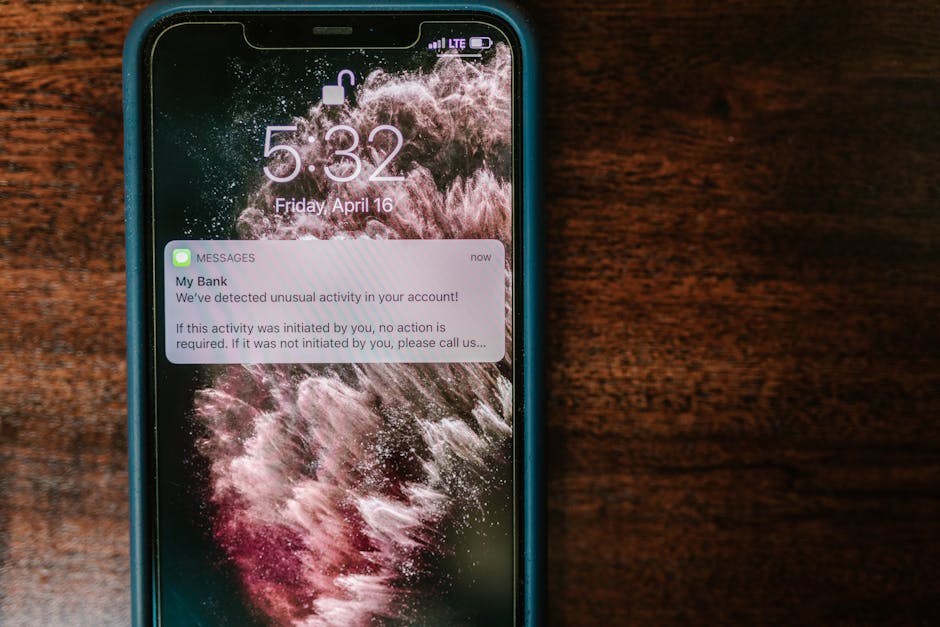
A secure password is useful, but it does not stop sensitive information appearing on a lock screen. Message previews, email subjects, calendar alerts and app notifications may reveal names, appointment details or other personal information to anyone who can see the device.
Review the notification settings on the actual lock screen, not only in the settings menu. Send yourself a harmless test message or notification, lock the device and check what is visible. I would not recommend a setting until it has been tested this way: menus can describe an option differently from how it looks in real use.
Where your employer permits work access, consider these steps in line with its policy:
- Hide notification content on the lock screen, or show notifications only after the device is unlocked.
- Turn off previews for work email and messaging apps if they could display confidential content.
- Check that calendar alerts do not expose sensitive appointment or meeting details.
- Use a strong passcode or another approved screen lock, and set the device to lock automatically after a short period.
- Do not leave the unlocked device visible in public areas, shared staff spaces or vehicles.
Notification privacy matters even when the phone is in your pocket. A preview can appear on a paired watch, car display or other connected device. Check those settings too, especially if a work account is linked to more than one screen.
What else should a secure setup include?
ICO working securely guidance emphasises protecting information with measures suited to the risks. Your employer’s policy may require several controls, and you should not switch them off because they seem inconvenient. Common measures include:
Control Practical reason What to check Passcode or biometric lock Helps prevent casual access if the device is unattended or lost. Use the standard required by your employer; enable automatic locking. Software updates Updates may fix known security weaknesses. Install updates promptly where permitted, and do not use a device that no longer receives security support for work access without checking with IT. Multi-factor authentication Adds a check beyond the password when signing in. Use the organisation’s approved method and report unexpected sign-in prompts. Encryption and remote controls Can help protect stored data and support action after loss or theft. Confirm what your employer requires and what a remote wipe will remove before enrolling. Secure network access Reduces exposure when connecting to work services away from the workplace. Follow your employer’s rules for Wi-Fi, VPN use and public networks.Do not install security software from an unfamiliar link or change device settings based on an unsolicited message. Use your organisation’s official IT instructions. If a control blocks a necessary clinical task, report the issue and request an approved solution.
If your device is lost or something goes wrong
Act quickly and follow the organisation’s incident-reporting process. Do not wait to see whether the device turns up if it may contain or provide access to work information. Contact the relevant IT or security team and your manager using the channels set out in local policy. They can advise on account access, remote locking or removal of work data and whether further reporting is needed.
Report mistakes too. If you send information to the wrong recipient, save it to an unapproved location or notice an unexpected login, tell the organisation promptly. Early reporting gives the appropriate team a chance to contain the issue and assess what happened. Do not try to cover up the error by deleting messages or records unless the incident team instructs you to do so.
A quick decision check before using a personal device
- My employer’s BYOD policy allows this device and this task.
- I am using approved systems only for patient and organisational data.
- I know how the device separates personal and work data.
- Lock screen previews and connected-device notifications do not expose work information.
- The required lock, updates and sign-in controls are enabled.
- I know how to report a lost device, suspicious access or accidental disclosure.
The bottom line
The ICO’s UK GDPR guidance does not make personal devices automatically acceptable or automatically forbidden. The organisation must assess the risks and put suitable safeguards in place; staff must follow the policy and use the approved tools. For clinicians, the safest practical starting point is to confirm permission, keep patient information within approved systems, separate personal and work data, and check what the actual lock screen reveals.
If any part of the setup is uncertain, pause before opening or sharing patient information and ask your information governance or IT team. A short check is usually easier than trying to unwind an avoidable disclosure later.